> ## Documentation Index
> Fetch the complete documentation index at: https://docs.pressmaster.ai/llms.txt
> Use this file to discover all available pages before exploring further.
# Find trending topics before they peak
> Find Ideas scans 500,000+ daily sources to surface industry trends 3–4 weeks before they peak, delivering ready-to-use content angles for your expertise.
Find Ideas is your personal trend engine inside Pressmaster. It scans 500,000+ sources daily to identify emerging topics in your industry before they become mainstream, giving you 3–4 weeks of lead time to publish content while the conversation is still building.
 ## What Find Ideas does
* Spots emerging trends 3–4 weeks before they peak
* Delivers ready-to-use content angles customized for your expertise and brand
* Provides viral-optimized hooks based on analysis of 50,000+ successful posts
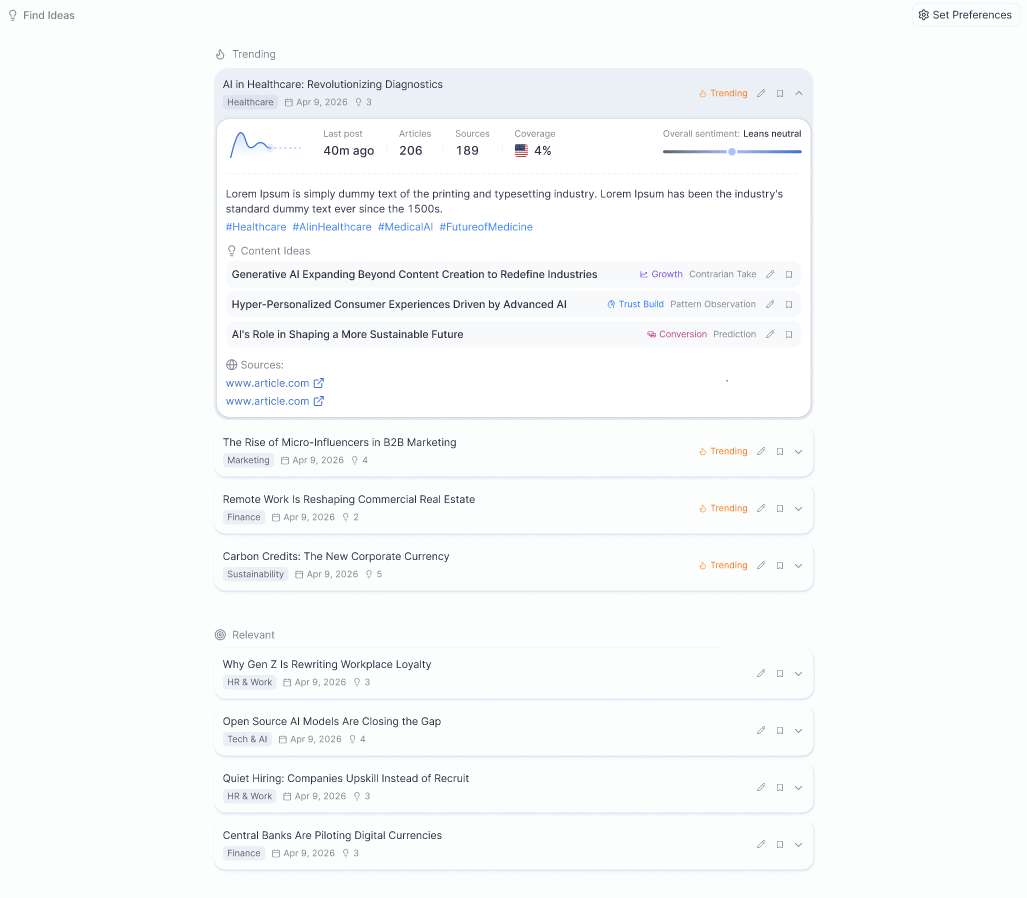
* Categorizes signals into **Trending** (real-time topics gaining traction) and **Relevant** (important, evergreen, or under-the-radar topics in your space)
Each signal includes a topic summary, sentiment analysis, and personalized content ideas tailored to your industry and voice.
## Setting up Find Ideas
Click **Set Preferences** in the Find Ideas section to begin configuration.
Select up to three industries. Use the "Help me choose the right industry" feature for automated suggestions based on your expertise. Pick one or two industries that best reflect your focus, broader categories give you more discovery.
Choose your geographic focus (Worldwide, North America, Europe, or a specific country) and your preferred language. North America and Global regions receive the highest news volume, giving you more signals to work with.
Enter keywords that reflect your specific expertise areas, for example, "AI marketing" or "leadership." Avoid overly narrow terms; broader keywords lead to better discovery. Leave the exclusions field empty unless you have specific topics to block.
Click **Apply Preferences** to activate Find Ideas. Allow 30–40 minutes for the initial trend analysis to complete. If no trending topics appear immediately, relevant signals will still be available, there is always content to work with.
## Update frequency by plan
| Plan | Trending topics | Relevant topics |
| ------- | ----------------- | --------------- |
| Starter | Weekly | Weekly |
| Pro | Daily | Weekly |
| Leader | Daily (real-time) | Daily |
## How to use trends to create content
Click any trending topic or relevant signal to see its summary, sentiment, and personalized content angles. Select the angle that fits your voice, then choose how you want to act on it:
* **Brainstorm**, explore, research, and develop the idea through chat or interview
* **Instant Creation**, generate a ready-to-post article, social post, or press release immediately
* **Plan Ahead**, feed the trend into a broader content plan
* **Interview**, jump straight into a guided interview on the topic
* **Save**, save the trend to your Saved Ideas to act on later
On the Pro plan, trending topics update daily and relevant topics update weekly. Trends depend on actual news volume and may not appear every day, if your feed looks empty, check back the following day or adjust your region and keyword settings.
## What Find Ideas does
* Spots emerging trends 3–4 weeks before they peak
* Delivers ready-to-use content angles customized for your expertise and brand
* Provides viral-optimized hooks based on analysis of 50,000+ successful posts
* Categorizes signals into **Trending** (real-time topics gaining traction) and **Relevant** (important, evergreen, or under-the-radar topics in your space)
Each signal includes a topic summary, sentiment analysis, and personalized content ideas tailored to your industry and voice.
## Setting up Find Ideas
Click **Set Preferences** in the Find Ideas section to begin configuration.
Select up to three industries. Use the "Help me choose the right industry" feature for automated suggestions based on your expertise. Pick one or two industries that best reflect your focus, broader categories give you more discovery.
Choose your geographic focus (Worldwide, North America, Europe, or a specific country) and your preferred language. North America and Global regions receive the highest news volume, giving you more signals to work with.
Enter keywords that reflect your specific expertise areas, for example, "AI marketing" or "leadership." Avoid overly narrow terms; broader keywords lead to better discovery. Leave the exclusions field empty unless you have specific topics to block.
Click **Apply Preferences** to activate Find Ideas. Allow 30–40 minutes for the initial trend analysis to complete. If no trending topics appear immediately, relevant signals will still be available, there is always content to work with.
## Update frequency by plan
| Plan | Trending topics | Relevant topics |
| ------- | ----------------- | --------------- |
| Starter | Weekly | Weekly |
| Pro | Daily | Weekly |
| Leader | Daily (real-time) | Daily |
## How to use trends to create content
Click any trending topic or relevant signal to see its summary, sentiment, and personalized content angles. Select the angle that fits your voice, then choose how you want to act on it:
* **Brainstorm**, explore, research, and develop the idea through chat or interview
* **Instant Creation**, generate a ready-to-post article, social post, or press release immediately
* **Plan Ahead**, feed the trend into a broader content plan
* **Interview**, jump straight into a guided interview on the topic
* **Save**, save the trend to your Saved Ideas to act on later
On the Pro plan, trending topics update daily and relevant topics update weekly. Trends depend on actual news volume and may not appear every day, if your feed looks empty, check back the following day or adjust your region and keyword settings.