
Social Inbox shows only posts published through Pressmaster. Posts published directly on a social network aren’t included. Every action you take (reply, like, hide, delete) is applied on the social network itself, not only inside Pressmaster.
Getting started
The first time you open Social Inbox, a short setup asks two questions. Your answers become your Social Inbox settings, and you can change them later.1
Choose whether to draft replies
Choose Draft every reply (recommended) or No drafts.
2
Choose how replies are written
Choose Best practices (recommended) or Custom guidelines. Custom guidelines is a text field where every line is one guideline, these lines are the rules the AI follows when it writes a reply.
3
Open the inbox
Click Open inbox.
The inbox
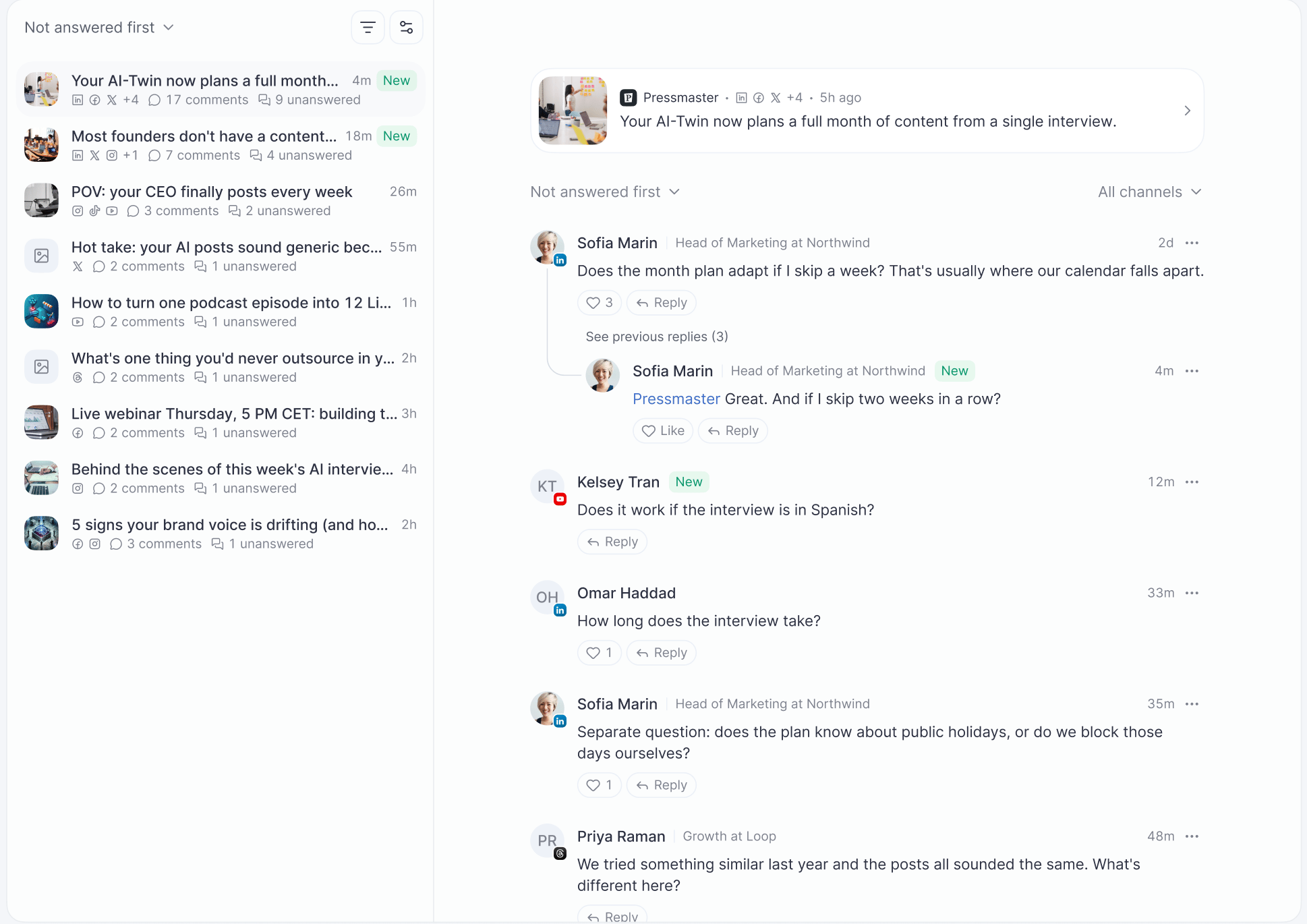
- Post titles, a post is titled with the first sentence of its text, the same as in Content Library and the Calendar. “Untitled post” appears only when the post has no text.
- Previews, posts with a video show a preview image of the video. If no preview is available, a grey image placeholder is shown, as for posts without media.
- Sorting, choose Not answered first, Newest first, or Oldest first.
- Filtering, filter by profile and by channel. If nothing matches, you see “Nothing here” and can clear the filters. On a phone, sorting and filtering are in the Sort and filter menu, which opens from the bottom of the screen.
- Loading, while the list loads, you see placeholder skeletons.
Comments and threads
Open a post to see its comments and replies. You can switch between All channels and a single channel, and sort the comments. Long reply chains are collapsed behind See previous replies. Click the post header to open the post details.Thread posts on Threads and X: if you published a post split into several parts, the parts aren’t shown as comments or replies. A comment left on any part of the thread appears as a comment on the post, and the counts match what’s shown.
A comment that contains only an image or GIF and no text may not display its media. This is a known limitation of the service that delivers comments to Pressmaster.
Actions on a comment
Use the menu on a comment. Every action is applied on the social network itself.Replying to comments
Click Reply on a comment, then type your reply or let AI write it. Draft with AI writes a reply in your voice, following your settings and your custom guidelines (or best practices). It uses the comment, the post, and the thread as context. The AI never invents a name, if the commenter has only a handle, the draft uses no name or uses the handle. If Draft every reply is on, a draft is prepared automatically for every new comment. When you click Reply, the draft is already in the reply box, so you only review, edit, and send. Automatic drafts are limited to 200 per workspace per day. Rewrite with AI becomes available once there’s text in the reply box, and offers these options:- Shorter
- Longer
- Friendlier
- More professional
- Ask a question back
- Try another version
- Your own instruction (“Tell AI what to change”)
Character limits
The reply box shows a character counter with the limit of the channel. While the text is over the limit, Send stays disabled and you need to shorten the text yourself.Tagging people
On LinkedIn, a reply tags someone only when you paste a LinkedIn profile or company link into the reply box. On other channels, a typed@handle may stay plain text, depending on the network.
After you send
A sent reply appears in the thread marked “Sent by you”, or with the name of the team member who sent it. If the send fails, the reply shows “Couldn’t post to <channel>” with Retry and Discard. The cases below show a more specific message.Delete or edit your own reply
Open the menu on your own reply. You can delete it on every channel. You can edit it on LinkedIn, Facebook, and YouTube. Instagram, X, Threads, TikTok, and Bluesky don’t offer Edit.Settings, credits, and disconnected channels
Settings
Open the settings menu inside the inbox to change what you chose in setup:- Turn Draft every reply on or off.
- Switch between Best practices and Custom guidelines. Custom guidelines are edited in a dialog, one guideline per line. Choosing Best practices clears your saved guidelines.
- Turn Social Inbox off or on. When it’s off, you see the “Social Inbox is off” state.
Credits
A failed or rate-limited generation is not charged. Agent Studio and the Pressmaster MCP follow the rules in the next section.
Disconnected channels
If a channel is disconnected or its connection expired, the posts of that channel show “<Channel> disconnected” with a Reconnect button. Replies on that channel are blocked until you reconnect.Social Inbox with Agent Studio and the Pressmaster MCP
Both the Agent Studio agent and the Pressmaster MCP (the connection Claude, ChatGPT, and ClickUp use) work on the same inbox you see in Pressmaster: the same comments, the same reply rules, the same channel limits. Both need Social Inbox to be switched on, setup to be completed, and at least one channel to be connected, otherwise they return a message naming the reason. Settings and the first-visit setup can only be changed on the page.Agent Studio
You can ask the agent, for example, “what did people comment on my posts this week, draft replies in my voice and send the ones I approve.” You can also set it as a recurring task, such as every weekday morning, with the existing scheduling. A new comment doesn’t start an agent run by itself. The agent can read the inbox and threads, save a draft on a comment, send a reply, like, hide, delete a comment, and delete your own reply.- Approval, sending a reply follows your workspace autonomy tier, like publishing a post. In a supervised workspace, every reply is reviewed before it’s sent.
- Credits, the agent has no paid draft tool. It writes replies itself, so only normal agent usage applies and no Social Inbox credits are charged.
- In the inbox, a reply sent by the agent shows that it was sent by the agent, never “Sent by you”. A draft saved by the agent shows “Prepared by your agent”. You can send, edit, or discard it on the page.
- Activity log, the agent activity log records comment and post IDs only, never commenter names or comment text.
Pressmaster MCP
In Claude, ChatGPT, or ClickUp with the Pressmaster MCP connected, you can list the posts with unanswered comments, read a thread, get a reply brief or a Pressmaster-written draft, send a reply, like, hide, or delete, and read or change the reply preferences. The result is the same as doing it on the page.- Credits, draft and rewrite over MCP cost 10 credits each, like on the page, and show in the workspace usage history. A retried request with the same request ID is never billed or posted twice. An exhausted balance is reported as such.
- Who sent it, a reply sent through MCP appears in the thread as sent by the person whose MCP connection made the call.
- Permissions, role rules mirror the page and are stricter for member roles. Social Inbox tools are available only to eligible workspaces and plans.
- Limits, lists and threads are paginated and never return unlimited comments.
Troubleshooting and FAQ
Why don't I see a comment from one of my posts?
Why don't I see a comment from one of my posts?
Social Inbox shows only posts published through Pressmaster. Posts published directly on a social network aren’t included. Also check that the channel is still connected.
Why do I see "Connect a channel to see comments"?
Why do I see "Connect a channel to see comments"?
No channel is connected to this workspace. Click Connect channels and connect at least one, then return to Social Inbox.
Why does my reply say Couldn't post?
Why does my reply say Couldn't post?
The social network refused the reply. Click Retry for a temporary problem. If the comment was deleted, the message says so and you can only discard the reply. If the channel is disconnected, reconnect it first.
Why was I charged credits for an AI reply?
Why was I charged credits for an AI reply?
Draft with AI, Rewrite with AI, and automatic drafts cost 10 credits each. A rewrite that returns the same text isn’t charged. Sending, liking, hiding, and deleting are free.
Why can't I edit my reply on Instagram, X, Threads, TikTok, or Bluesky?
Why can't I edit my reply on Instagram, X, Threads, TikTok, or Bluesky?
Editing is available on LinkedIn, Facebook, and YouTube only.
I deleted a reply on YouTube, but YouTube still shows "1 reply."
I deleted a reply on YouTube, but YouTube still shows "1 reply."
The reply is removed. The old counter is on YouTube’s side and updates later.
Why can't I hide a comment on LinkedIn or YouTube?
Why can't I hide a comment on LinkedIn or YouTube?
Hiding is available on Facebook, Instagram, X, Threads, and TikTok. On other channels, you can delete the comment.
Why is a comment with an image empty?
Why is a comment with an image empty?
Comments that contain only media may not display it. This is a known limitation of the service that delivers comments to Pressmaster.
Does a new comment make the agent reply on its own?
Does a new comment make the agent reply on its own?
No. The agent works when you ask it or on a schedule you set.